ZeroGen LogoZeroGen
Model
Prompt
Aspect Ratio

Result

Generated image will appear here

Enter a prompt to get started

GPT Image 2 - Free AI Image Generator, Photo Editor

Generate and edit images with GPT Image 2 using simple text prompts. Create AI artwork, remove backgrounds, erase objects, enhance photos, and transform images online, with a daily free quota for quick tests.

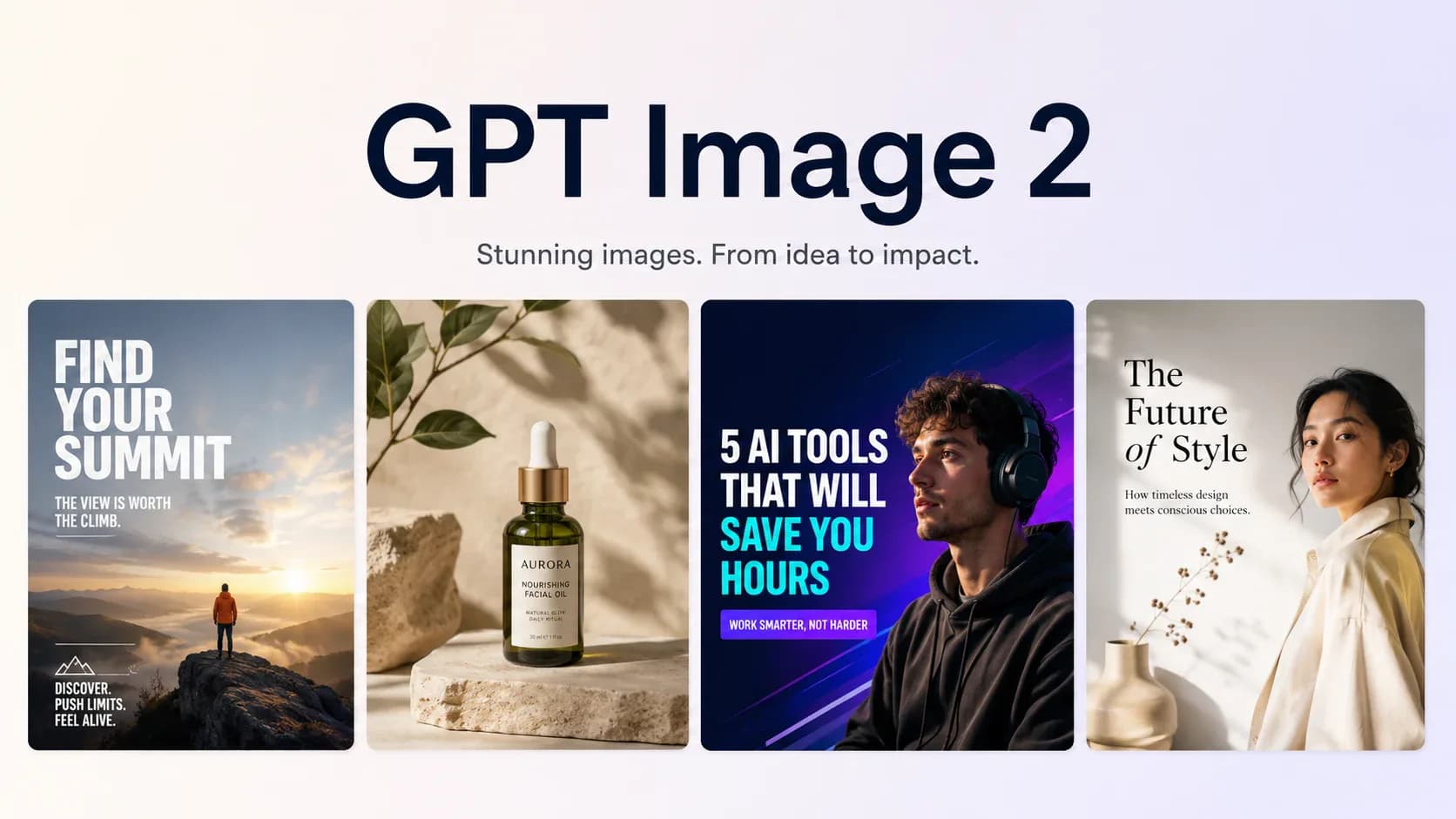
GPT Image 2 gallery with generated and edited poster, product, thumbnail, and editorial image results

What is GPT Image 2?

GPT Image 2 is an AI Image Generator & AI Image Editor built around the OpenAI GPT Image 2 model. Use it to create a new image from a text prompt, or upload a reference image when the result should follow an existing subject, style, scene, or composition. The workflow is designed for practical creative work: marketing concepts, product mockups, social thumbnails, editorial graphics, presentation visuals, and image-to-image refinements that need clear direction before export.

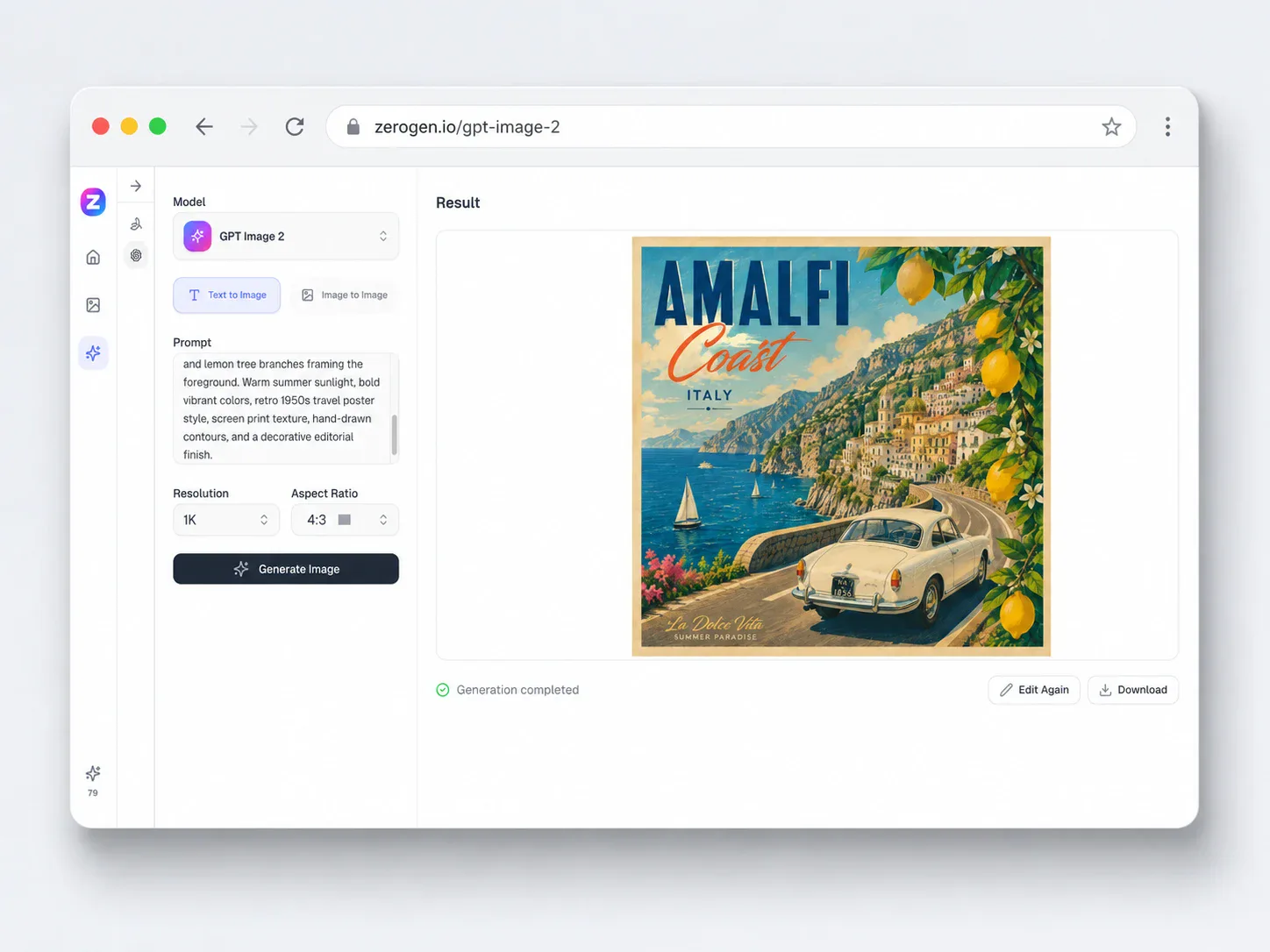
GPT Image 2 image generator and editor shown inside a browser window at zerogen.io/gpt-image-2

Why use GPT Image 2 for image generation and editing

The tool combines text-to-image generation and image-to-image editing in one workspace, so creators can start from a prompt, guide the result with a reference, and refine assets without switching tools.

Built around the OpenAI GPT Image 2 model

Use GPT Image 2 when a visual brief needs more than a decorative image. Describe the subject, layout, lighting, material, style, and output format, then generate a draft that gives your team a concrete direction for posters, product scenes, thumbnails, or campaign concepts.
Generate from text or edit from a reference image

Switch between AI image generator and AI image editor workflows depending on the task. Start from a blank prompt for a new concept, or upload a reference image when you want the output to follow an existing subject, composition, or visual direction more closely.

Control ratios, prompt detail, and final review

Choose practical ratios such as auto, 1:1, 4:3, 3:4, 16:9, or 9:16 before generating. Review the result for layout, wording, and visual fit, then download it or send it back into editing with a tighter prompt.

Where GPT Image 2 fits your creative workflow

Use GPT Image 2 when you need to generate, edit, or refine image directions before committing design, photography, or production time.

Marketing ads and campaign tests

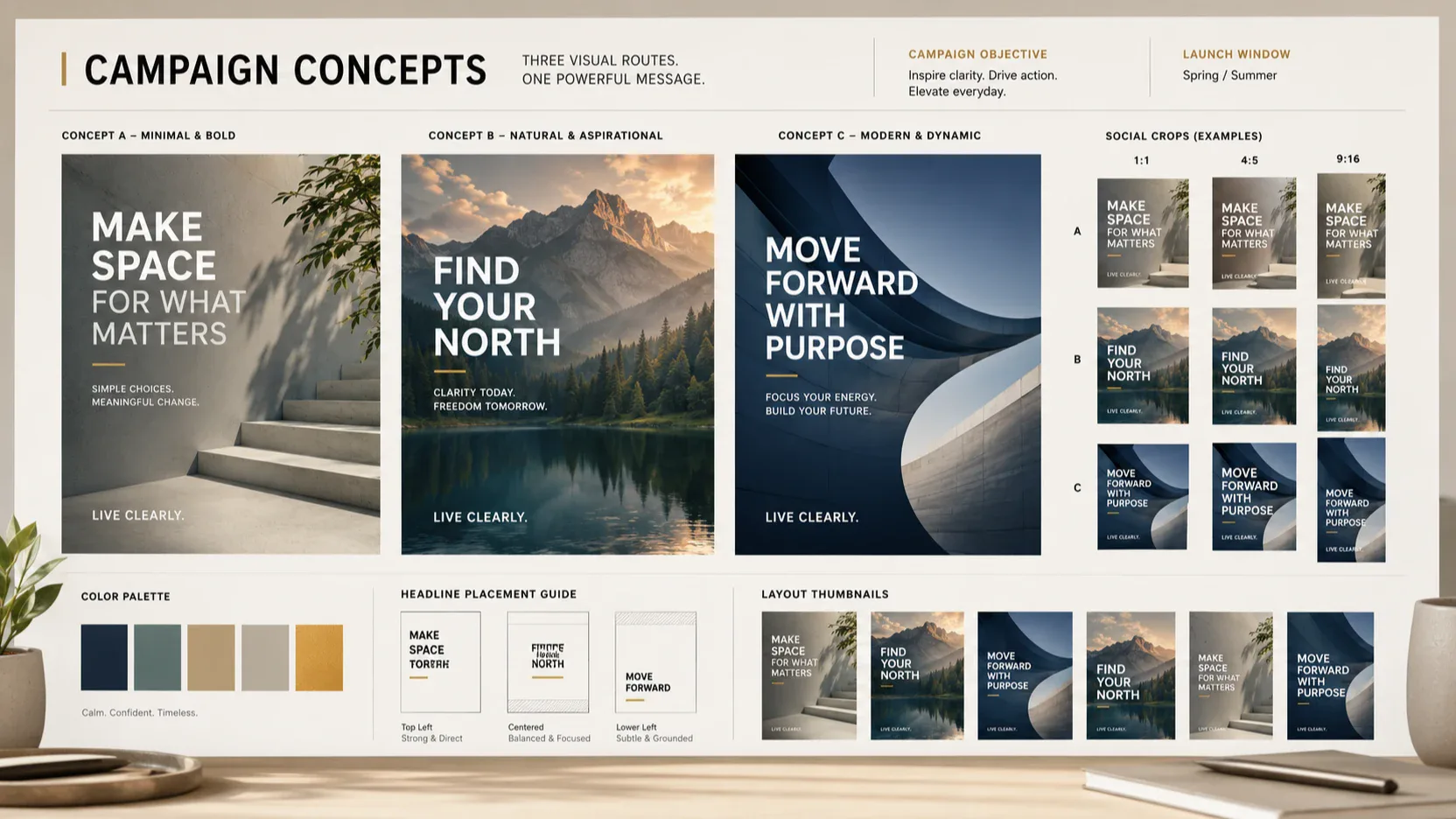
Turn a launch message into several visual routes for social ads, landing pages, and seasonal campaigns. Generate poster directions from prompts, then refine promising options with reference images, tighter wording, or a new aspect ratio before final design work.

Marketing campaign board with generated poster and ad variations

Product mockups and ecommerce scenes

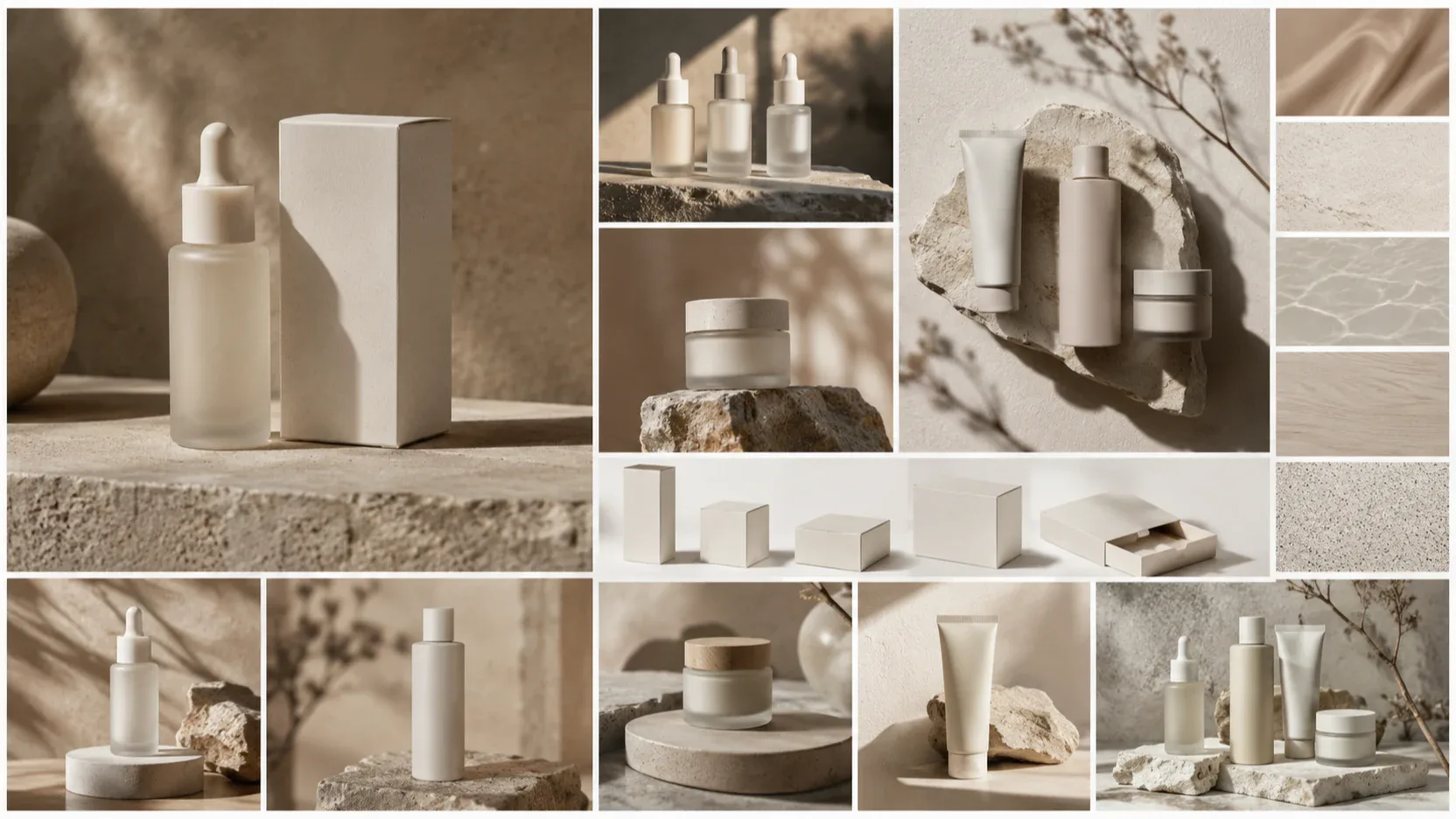
Use the GPT Image 2 AI Image Generator & AI Image Editor to explore packaging, material, lighting, background, and product presentation. Ecommerce teams can generate lifestyle scenes, guide a result with a reference, and compare mockups before photography or 3D production.

Generated ecommerce product scene with product packaging and studio lighting

Social thumbnails and creator assets

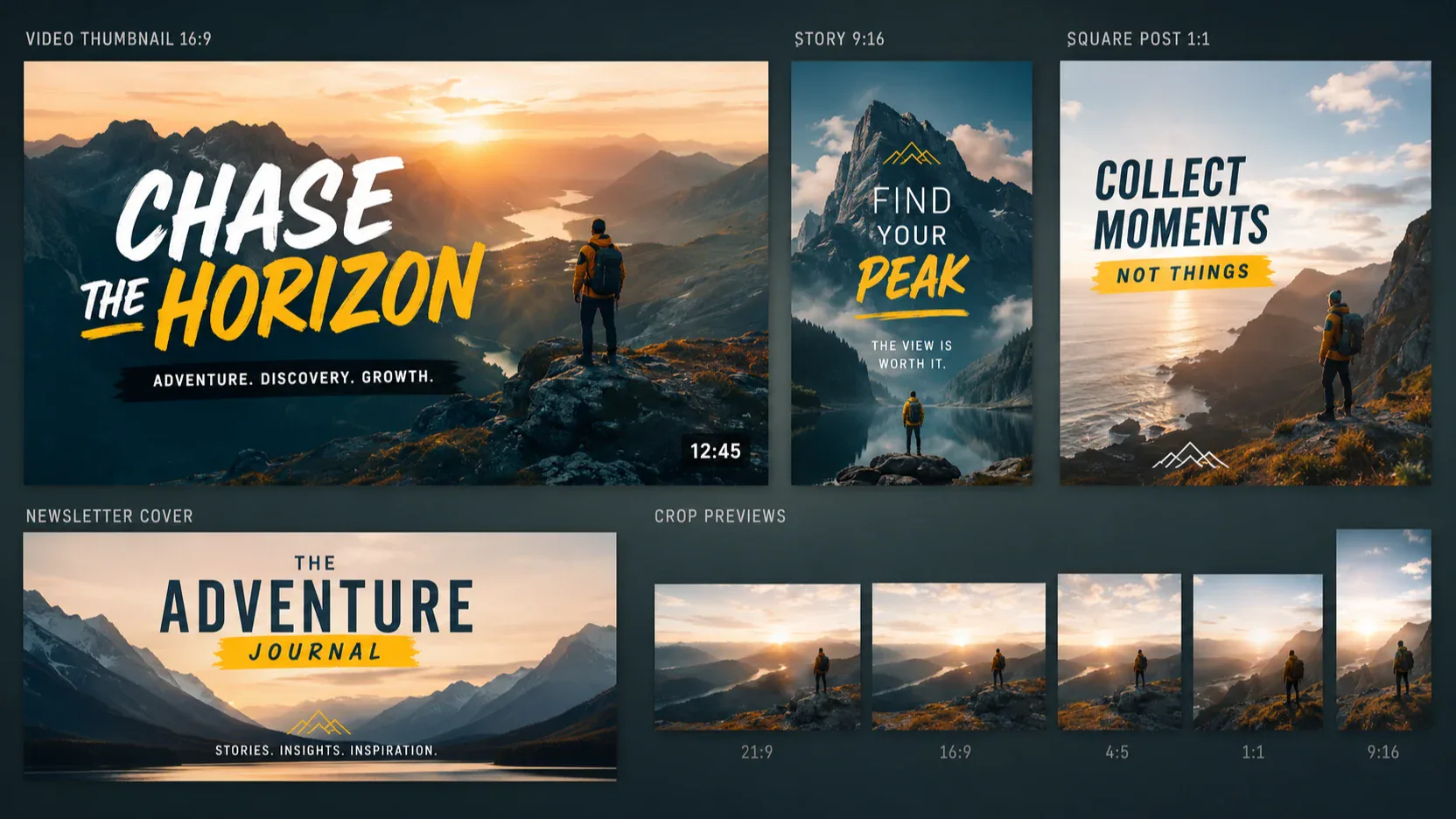
Create YouTube thumbnails, Instagram posts, newsletter covers, and creator graphics from a clear brief. Name the format, subject, title text, contrast level, and mood, then edit again when a crop, headline, or reference direction needs another pass.

Set of generated social thumbnails and creator visuals

Pitch decks and early product concepts

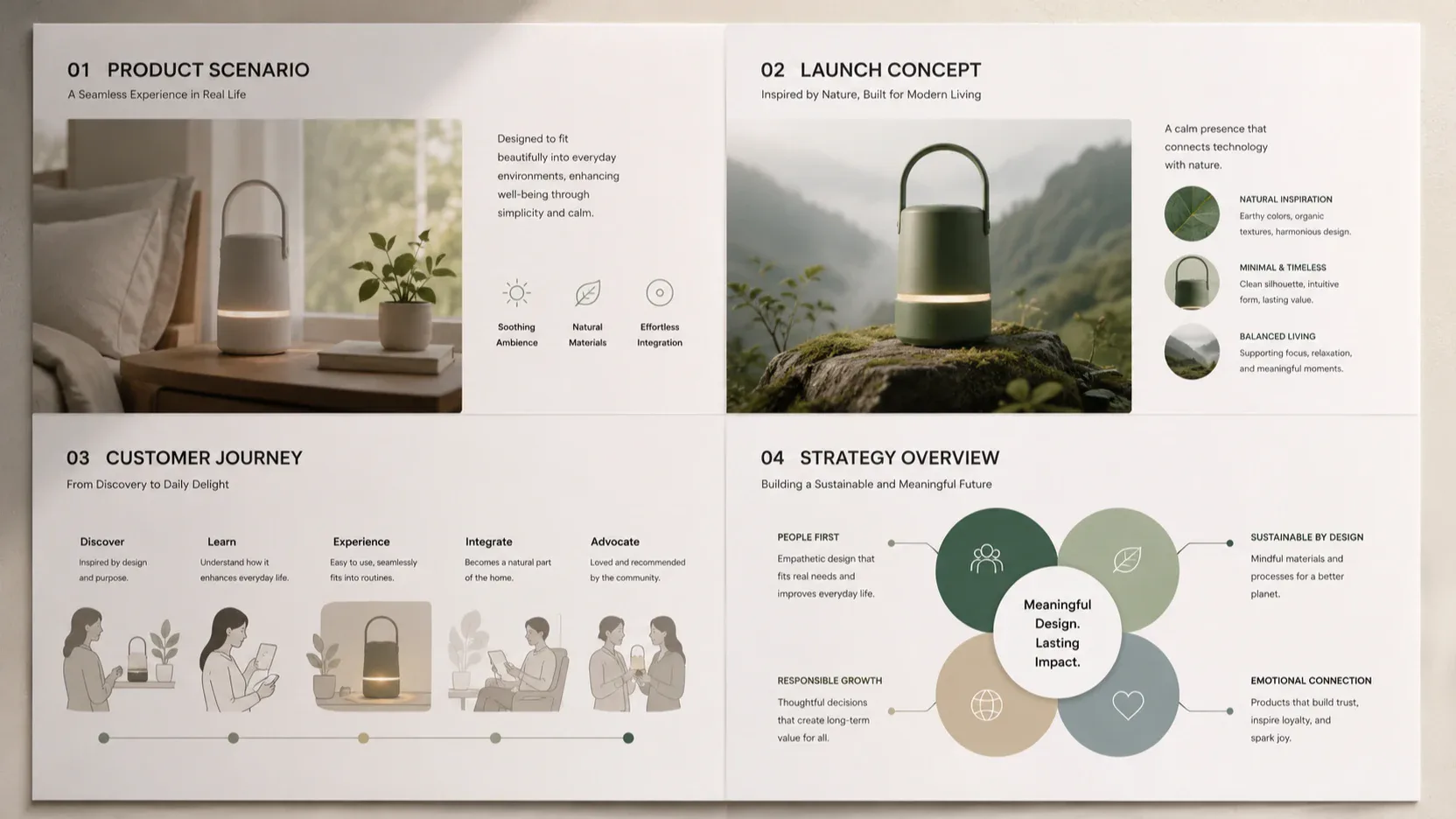
Give product managers, founders, and designers a faster way to visualize scenarios for decks, prototypes, and launch discussions. Generate concept images, refine them with image-to-image prompts, and turn rough positioning into visuals that are easier to review.

Generated concept visuals for pitch decks and product storytelling

How to use GPT Image 2

Choose generation or editing, write a clear brief, then review, download, or refine the result.

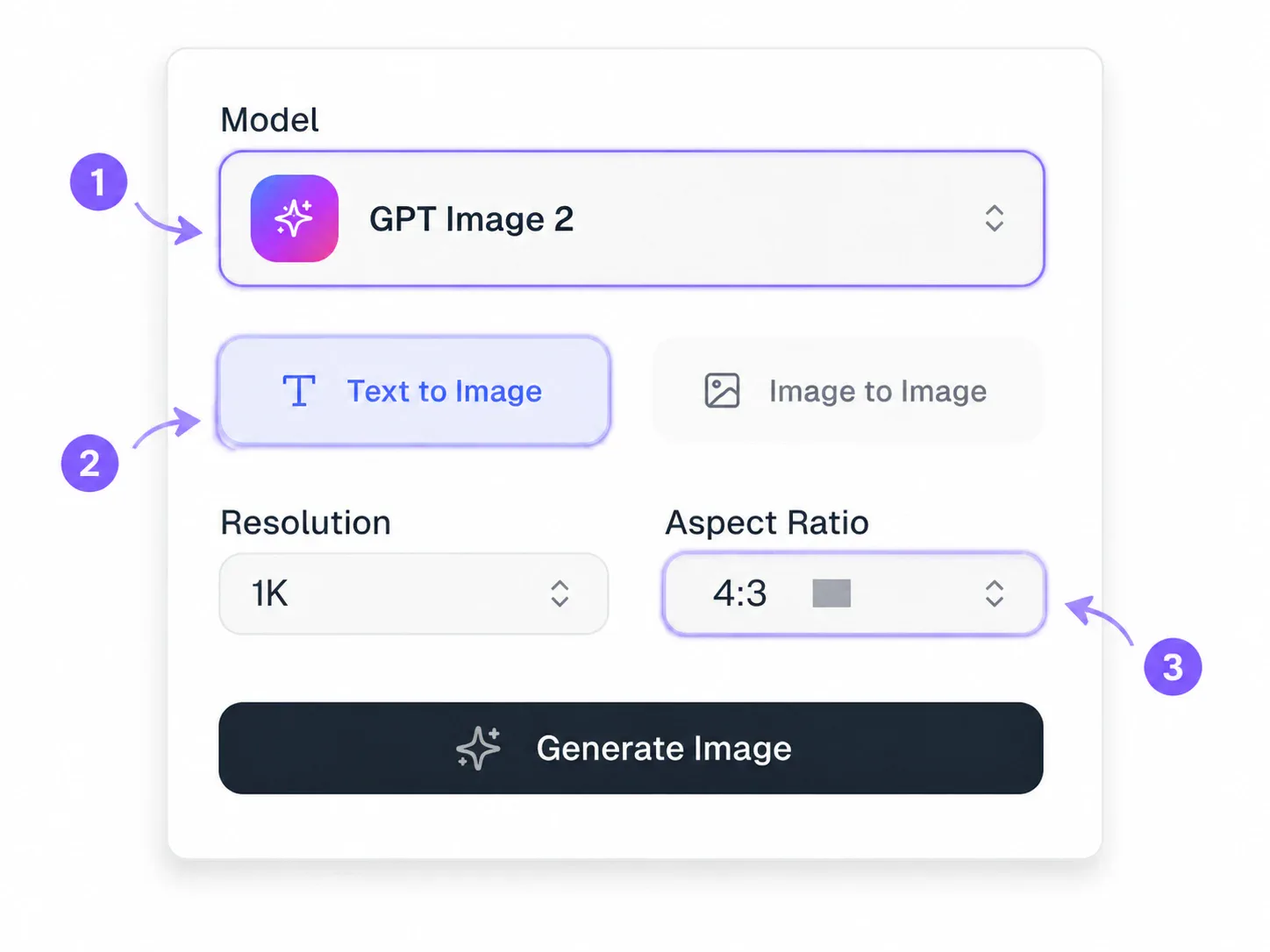
Annotated GPT Image 2 controls showing model, generation mode, editing mode, and aspect ratio choices
Step 01

Choose GPT Image 2, mode, and ratio

Select GPT Image 2, then choose text-to-image for a new visual or image-to-image when a reference should guide the result. Pick the aspect ratio that matches the final channel before generating.

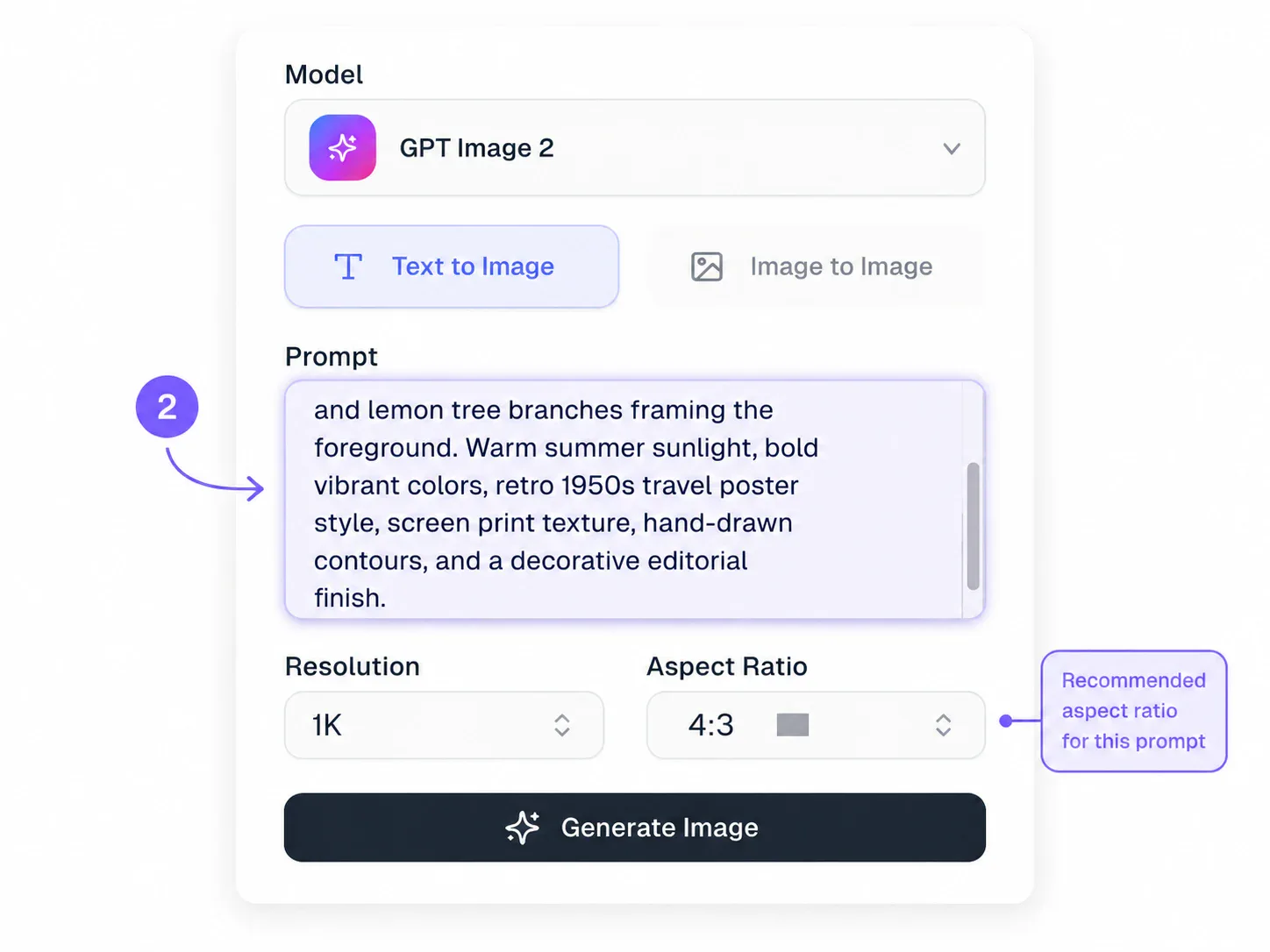
Annotated GPT Image 2 prompt box with arrows highlighting the visual brief and reference-guided workflow
Step 02

Write a prompt or add a reference image

Describe the asset type, subject, layout, lighting, material, style, and any exact text. For editing, upload a reference image and explain what should change or stay consistent.

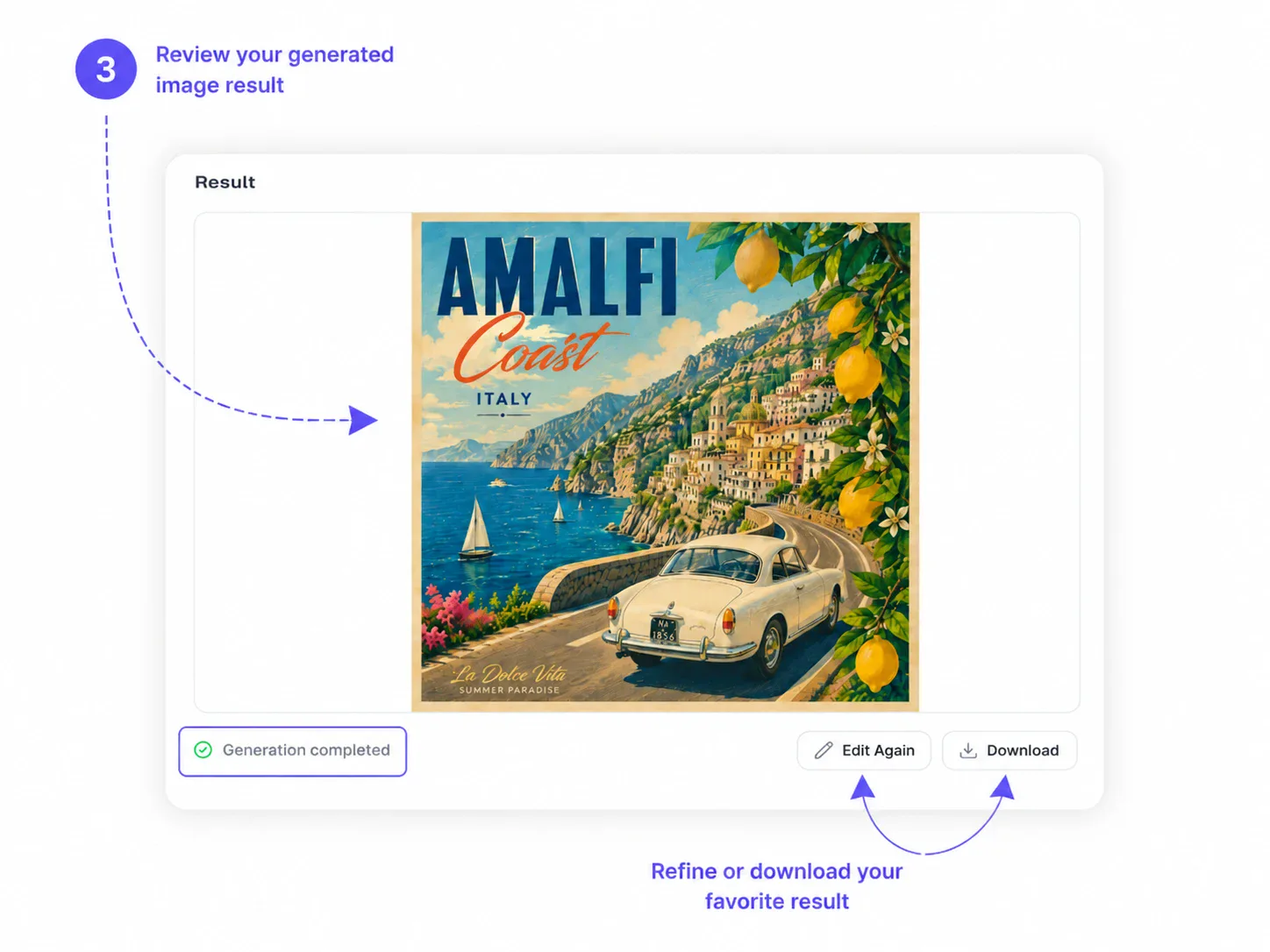
Annotated GPT Image 2 result review with arrows pointing to completed status, Edit Again, and Download
Step 03

Review, download, or edit again

Check the generated or edited image for composition, wording, and channel fit. Download it when it works, or use Edit Again with a more specific prompt for another pass.

Creators using GPT Image 2 to generate and edit images

Marketing, content, ecommerce, product, and design teams use GPT Image 2 to move from brief to generated or edited visual directions faster.

MC

Maya Collins

Brand Content Lead

GPT Image 2 helps us turn a campaign message into visible directions before a design sprint starts. We generate poster routes, refine the strongest crop with a reference, and brief the final design work with clearer examples.

EW

Ethan Ward

Ecommerce Creative Manager

For product pages, GPT Image 2 is useful when we need scene ideas quickly. We generate packaging and lighting directions, then use image-to-image prompts to keep the product presentation closer to our reference.

NP

Nora Patel

Independent Designer

I use GPT Image 2 at the moodboard stage because it supports both creation and refinement. A prompt gives me options, and a reference image helps me steer the result when the client wants a more specific direction.

LR

Leo Ramirez

Social Media Strategist

GPT Image 2 is helpful for thumbnails and ad tests because I can start with the final channel size. When a draft is close, I edit again instead of starting over, which makes testing visual directions faster.

CH

Clara Hughes

Content Operations Manager

Our editorial team uses GPT Image 2 to replace generic stock searches with custom blog and newsletter visuals. Prompt details keep the look consistent, while image-to-image edits help us adjust a direction without rebuilding it.

JB

Jon Bell

Product Marketing Lead

For launch planning, GPT Image 2 turns abstract positioning into draft scenes we can discuss. It helps product, marketing, and design teams align on audience, message, and visual tone earlier in the process.

GPT Image 2 FAQ

Answers about GPT Image 2 generation, image editing, reference images, prompts, aspect ratios, daily free quota, credits, and downloads.

GPT Image 2 is an AI Image Generator & AI Image Editor based on the OpenAI GPT Image 2 model. It helps you create new images from text prompts and edit images with reference-guided instructions for marketing, ecommerce, social, editorial, and presentation work.

Yes. Use text-to-image mode when you want to create a new visual from a prompt. Use image-to-image mode when you want a reference image to guide the subject, composition, style, or scene while you describe the changes you need.

The workflow is built for controlled creative drafts, not just decorative images. You can specify format, subject, layout, lighting, material, style, and text placement, then review the result and edit again when the direction needs refinement.

It is better suited for visuals that include titles, labels, event names, and thumbnail copy. For best results, put exact words in quotes, keep the layout simple, and always review in-image text before publishing or sending a final asset.

The GPT Image 2 page supports practical ratios for common channels: auto, 1:1, 4:3, 3:4, 16:9, and 9:16. Choose the final format before generating or editing so the composition fits posts, banners, presentations, or mobile stories with less cropping later.

Start with the asset type, then add subject, layout, environment, lighting, material, color palette, style, and exact text in quotes. For image editing, also explain what should change and what should remain consistent with the reference image.

Yes. You can use a daily free quota to try the generator and editor before spending more credits. The workspace also shows credit costs for higher-volume use, so you can test prompts, compare results, and decide when to keep refining an image.

Yes. After generation or editing completes, you can download the image or use Edit Again to keep refining it. This is useful when a draft is close but needs a tighter prompt, a different crop, or another reference-guided pass.

AI Image Generator & AI Image Editor based on OpenAI GPT Image 2

Generate or edit your first GPT Image 2 image

Start from a prompt or upload a reference image, choose a ratio, generate or edit with your daily free quota, then download the result or refine it again when the direction is worth another pass.

Open GPT Image 2